 We all know how touchy WiFi can be, especially when you need it most. A shoddy wireless signal can be especially troublesome if you have tasks that need to be completed, and you need a WiFi connection to complete them. Instead of getting all flustered and calling your ISP, try using your Android smartphone as a mobile hotspot.
Before you jump right into setting up a wireless connection with your smartphone, it’s important to take note of the finer details of your data plan. Using your phone as a hotspot is known to eat vast amounts of data, and some service providers even charge an additional fee for their tethering service. If you’re confident in the amount of data your phone has, you can follow these steps to set up a mobile WiFi hotspot.
First, access the Settings for your device. You’re looking for the Tethering and Wi-Fi hotspot option from this menu. If your device doesn’t have it, it’s probably under More networks. Once you’ve found the option, select Tethering and Wi-Fi hotspot.
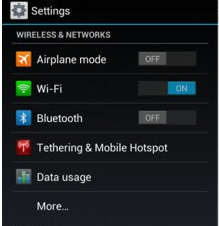
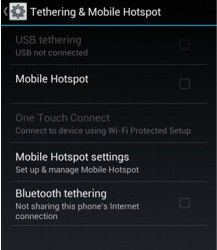
From here, you can slide the Mobile Hotspot setting from OFF to ON. Activate your hotspot by selecting OK. If your device is broadcasting its signal, the ON button will be green, and you can see the information about your network displayed underneath Mobile Hotspot.
The device you want to connect to your new portable WiFi network should be able to connect to the device without a hitch. In order to do so, you’ll probably have to enter in a WiFi password. If you haven’t set this up before, you should do so as soon as possible.
To do so, select the activated Mobile Hotspot underneath Tethering and Wi-Fi hotspot. Select Configure at the bottom of the screen. This displays your password information, and you can proceed to change it to what you see fit.
Now that you have the password, you can easily access your mobile WiFi hotspot. Just remember to turn it off when you’re done.
If you want to make the process even easier for you, then you can try downloading the free Google application Portable Wi-Fi from the Google Play Store.
With mobile WiFi set up on your device, you’ll be free from the crummy service you might experience at times.


Comments